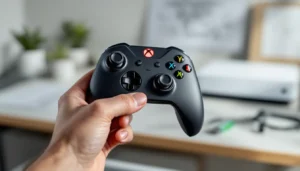
Picture this: you’re all set for a gaming marathon, snacks at the ready, and your favorite game loaded up. But wait—your Xbox One controller refuses to sync. The sync button has turned into a rebellious teenager, ignoring your every command. Frustrating, right?
Common Issues With Xbox One Sync Button
Troubles with the Xbox One sync button can disrupt an otherwise perfect gaming experience. Several factors contribute to these issues.
Understanding the Sync Button Function
The sync button pairs the controller with the console wirelessly. Users press the sync button on both the Xbox One and controller for this connection. This process creates a communication link, enabling gameplay without cables. Problems arise when the button fails to respond, causing disconnection or connection failures between devices.
Frequent Problems Encountered
Connectivity issues persist as one common problem. Low battery levels can hinder the sync, making it impossible to connect effectively. Similarly, hardware malfunctions in the console or controller can lead to persistent syncing failures. Interference from other electronic devices may disrupt the signal, complicating the syncing process. Following these potential issues helps identify the root cause of sync button failures.
Troubleshooting Steps


Resolving issues with the Xbox One sync button requires a systematic approach. Several methods can help restore connectivity between the controller and console.
Checking Console and Controller Batteries
Ensure the batteries in both the console and the controller are sufficiently charged. Low battery power often leads to syncing problems. Replace the batteries in the controller if they’re disposable, or recharge it if it uses a rechargeable pack. A quick inspection of the battery levels can prevent unnecessary troubleshooting.
Resetting the Console
Power cycling the console may address connectivity issues. Turn off the Xbox One and unplug it from the power source. Wait for at least 10 seconds before plugging it back in and turning it on. This process can help reset internal settings and may improve syncing functionality.
Re-syncing the Controller
Re-syncing the controller is a straightforward step. Press the sync button on the console and then immediately press the sync button on the controller. Make sure both devices are close together during this process. A successful synchronization indicates a resolved issue, allowing for smooth gameplay.
Advanced Solutions
Advanced troubleshooting steps can further assist in addressing Xbox One sync button issues. These solutions help restore the connection between the controller and console.
Updating Controller Firmware
Updating the controller firmware can resolve syncing dilemmas. Xbox One controllers feature firmware that may require updates to fix bugs and enhance compatibility. To update, connect the controller to the console using a USB cable, then navigate to the settings menu. Selecting “Devices and accessories” reveals the option to update the controller’s firmware if necessary. Completing this process often improves connectivity and resolves sync issues effectively.
Factory Resetting the Xbox One
Factory resetting the Xbox One serves as a last-resort solution for persistent syncing problems. This action restores the console to its original settings, eliminating software glitches that may affect syncing. To initiate a factory reset, access the settings menu and choose “System” then “Console info.” From there, select “Reset console,” followed by the option to “Reset and remove everything.” This step deletes all saved data, so backing up important information is crucial before proceeding. After completion, the console may connect seamlessly with the controller.
When to Seek Professional Help
When troubleshooting fails and the Xbox One sync button still doesn’t work, professional assistance may be necessary. Persistent issues often indicate deeper problems requiring expert attention.
Warranty Considerations
Checking the console’s warranty status is a vital first step. Many Xbox One consoles come with a one-year warranty that covers hardware defects. If the warranty is still active, contacting Microsoft or an authorized service provider is recommended. They can provide repairs at no extra charge. Maintaining warranty coverage ensures he or she receives the most effective and safe repairs possible.
Repair Options Available
Several repair options exist for Xbox One sync button issues. Authorized service centers typically offer reliable fixes for most sync problems. Local repair shops may also provide faster turnaround times. Using online repair services could offer convenience with guided instructions and shipping labels. Each option presents different benefits, making it essential to weigh the urgency and cost associated.